Adding a Series
Optional Step
Manually adding Series is not the typical day-to-day workflow — Syncs (covered earlier) are how most users add libraries. This page is practice for one-off Series, testing, or Series that should not come from a Sync.
Example Series
This example uses Breaking Bad. If you do not have it in your server, pick any other Series and follow the same steps. If Breaking Bad was already added by your tutorial Sync, pick a different Series (or delete it from TCM first) so you can practice the Add flow.
-
Navigate back to the TitleCardMaker homepage - this can be done by clicking
Seriesfrom the side navigation bar, or hitting Shift + H (when a text box is not selected). -
On the left-hand side bar, a navigation menu labeled
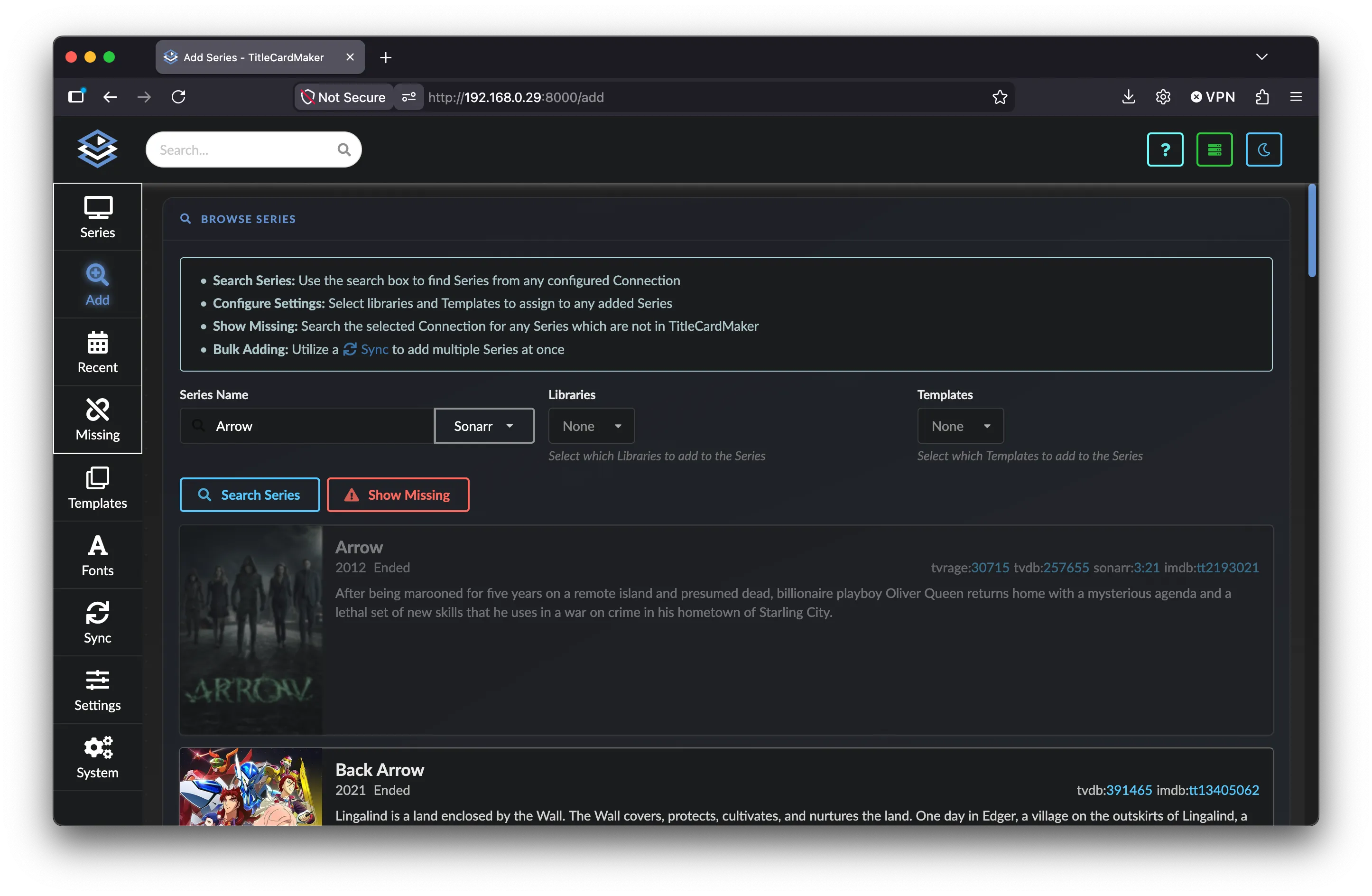
Addshould appear. Click this to go to the "Add Series" page where you can add both Series and Blueprints.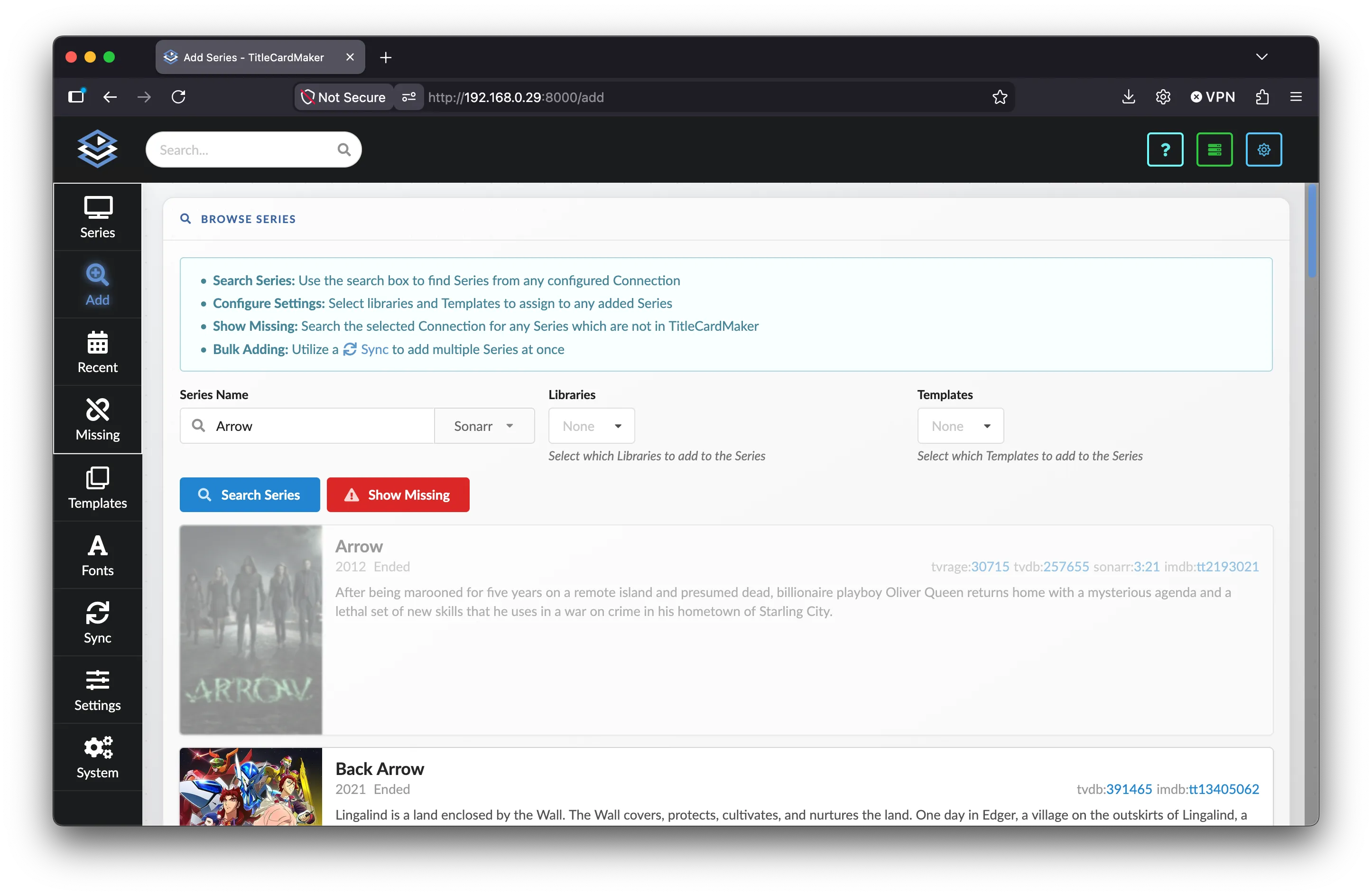
-
Under
Browse Series, type Breaking Bad in the search bar and click .Search Source
If your default search connection is Emby, Jellyfin, or Plex and you don't have the Series in your server, you can choose a different connection, or just search TMDb.
Sonarr Posters Not Loading
If the posters in your search results are not loading (all black), this is a result of Sonarr rejecting TCM's API request to view the poster. You can either disable authentication for local addresses within Sonarr (if using TCM locally), or just ignore this.
-
TCM will now query your selected connection for all Series which match that name. Breaking Bad should be among the top results. Before you click anything, you may select any media server libraries you want associated with this Series.
Example Libraries
If I had Breaking Bad in a server under two libraries, then I could select either or both libraries in the dropdown so that TCM knows to load Cards into those libraries.
If I did not have Breaking Bad in any of my servers, then I can leave this blank. This can always be changed later.
-
Click the search result and TCM will begin processing it. While you are on this page, scroll down to the
Browse Blueprintssection at the bottom of the page. -
Type Breaking Bad in the Blueprint search field and click . TCM will display all available Blueprints for this Series. For the purposes of this tutorial we will not be importing these — instead we'll customize the Cards ourselves. Keep in mind this is one way to find Blueprints.
What are Blueprints?
Blueprints are described in greater detail here, but in-short: they are pre-made Title Card configurations that include everything needed to make Cards in a given style. This includes Fonts, Templates, Series customizations, etc.
-
Once TCM has finished processing the Series, go to the Series page in one of a few ways:
-
Click the Search box in the top left corner, then search for and select the Series.
Keyboard Shortcut
You can enter the Search box by typing F or S (for
find andsearch) anywhere in TCM (when a textbox is not selected). -
Return to the home page by clicking the
Seriesbutton on the left navigation bar, find the Series and click either the button or the Series name.
-
-
Click the
Card Configurationtab. Assign a Font and/or Template as desired, then scroll down and click .
Success
You've now manually added a Series to TCM. Continue to Creating Title Cards if you still need to build Cards for it, or to Rescheduling Tasks to adjust automation.