Settings
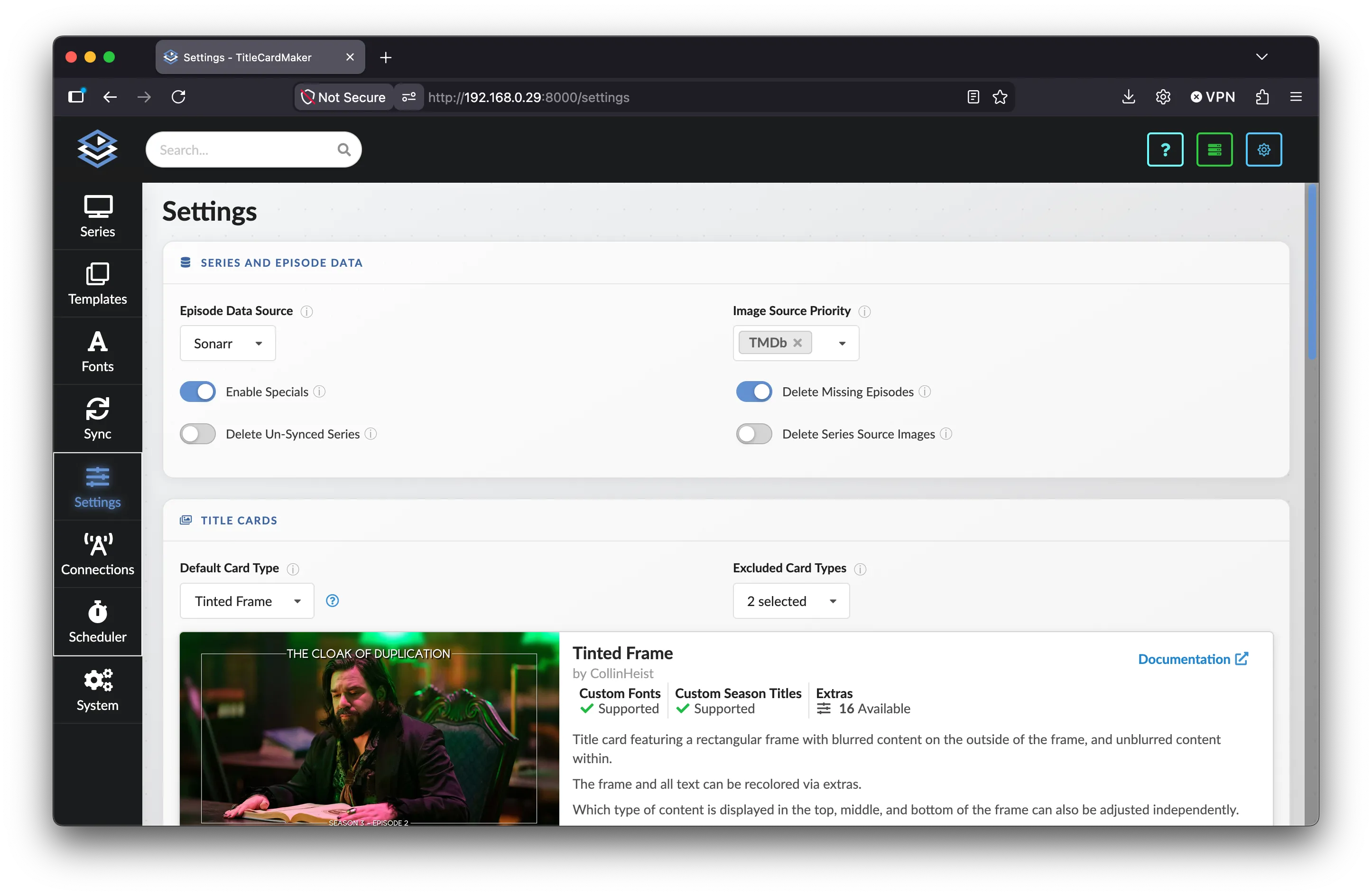
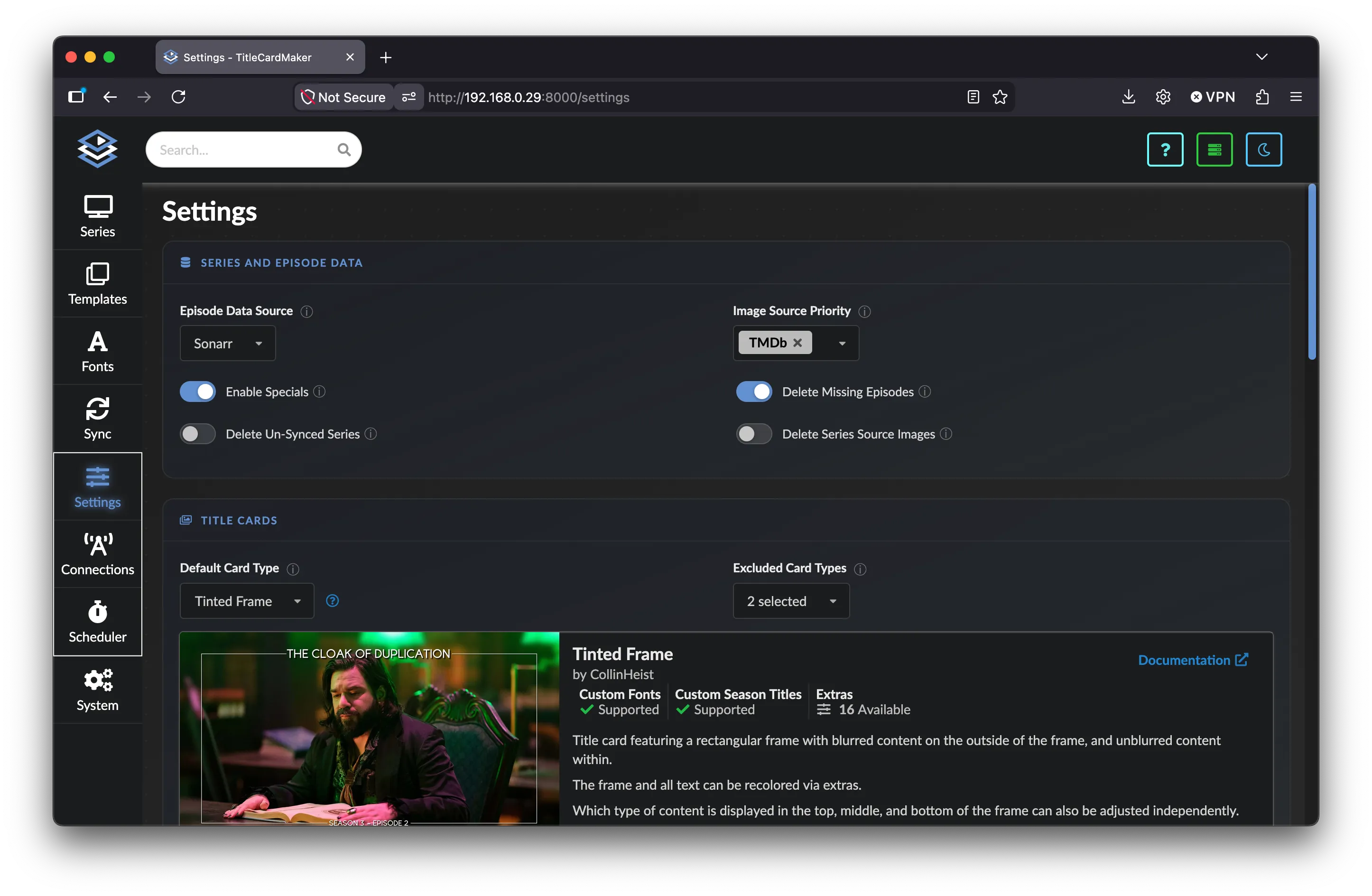
Most default Settings can be left as-is. Two settings must be set before TitleCardMaker can gather Episode data and Source Images automatically: Episode Data Source and Image Source Priority.
-
Navigate to the Settings page by clicking
Settings, thenSettingsfrom the side navigation bar (or open the/settingsURL). -
Set Episode Data Source to match a Connection you enabled. Prefer Sonarr if you connected it; otherwise use your media server (Plex, Jellyfin, or Emby), or TMDb.
-
Set Image Source Priority so TMDb is first, followed by your media server(s). For example:
TMDb, thenPlex(or Emby / Jellyfin).Why TMDb first?
TMDb usually has a wider variety of higher-quality images than auto-scraped media server artwork. Your media server remains a useful fallback.
-
Optionally open the Default Card Type dropdown and pick a style you like. The most popular choices are Tinted Frame and Standard. For this tutorial we will override the card type with a Template in the next steps, so this choice is not critical yet.
-
Click .
For a full table of recommended values and details on every setting, see the User Guide.