Creating a Template
Templates are a critical component of quickly customizing your TitleCardMaker setup. A Template contains a set of customized settings, and any number of Templates can be assigned to a Sync, Series, or Episode.
For example, a common use of Templates is to create separate distict Card styles for Series of different genres/mediums. The most popular Template by far is an "Anime" one which applies the Anime card type, adds Kanji translations, and may overwrite some card extras (settings).
For this tutorial we'll be creating a Template, and in a later step we'll apply this automatically with a Sync.
Setting Priority
Template settings always take priority over any global settings, unless the Template value is unset (left blank).
-
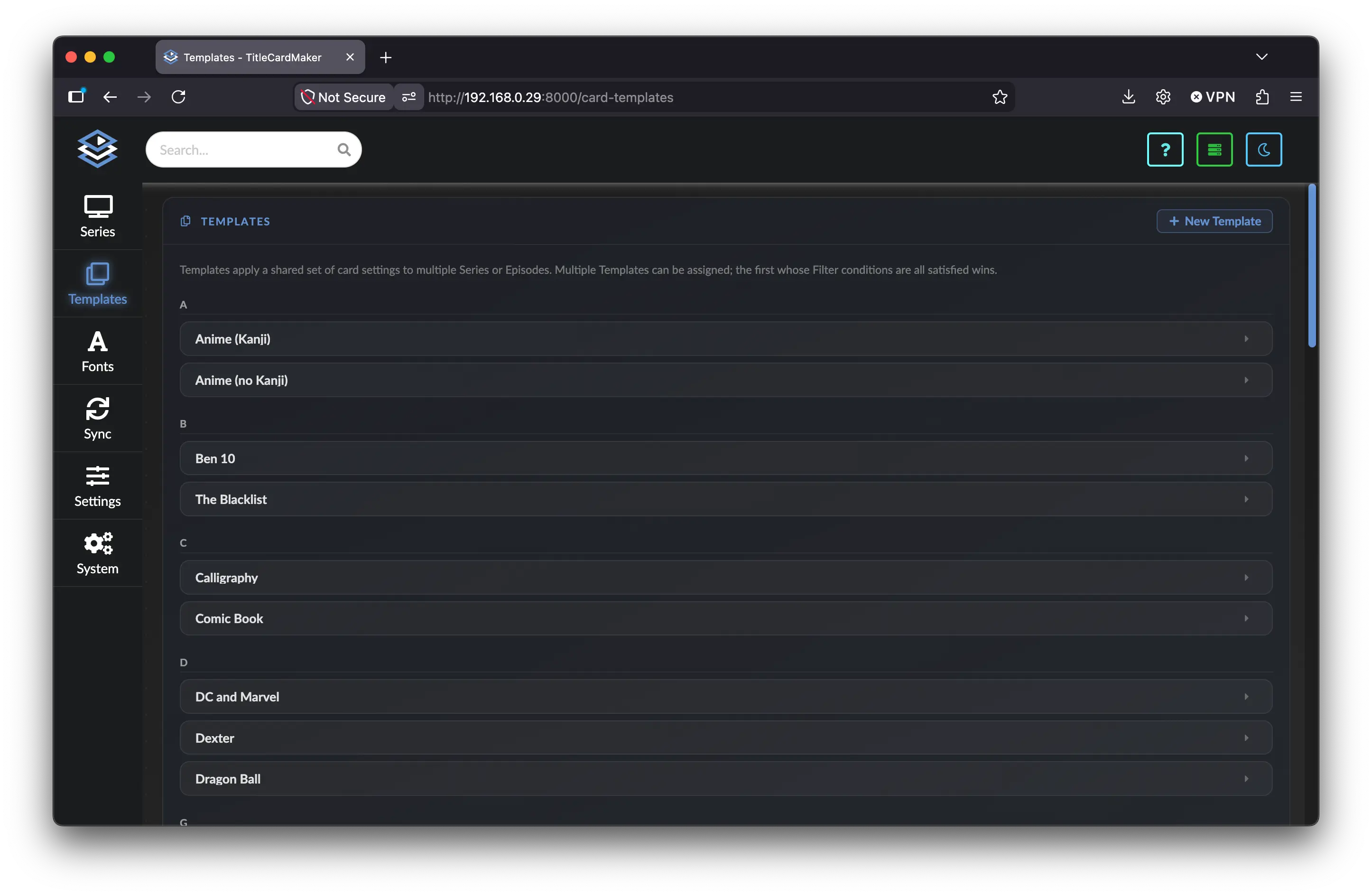
Navigate to the Template page by clicking
Templatesfrom the side navigation bar.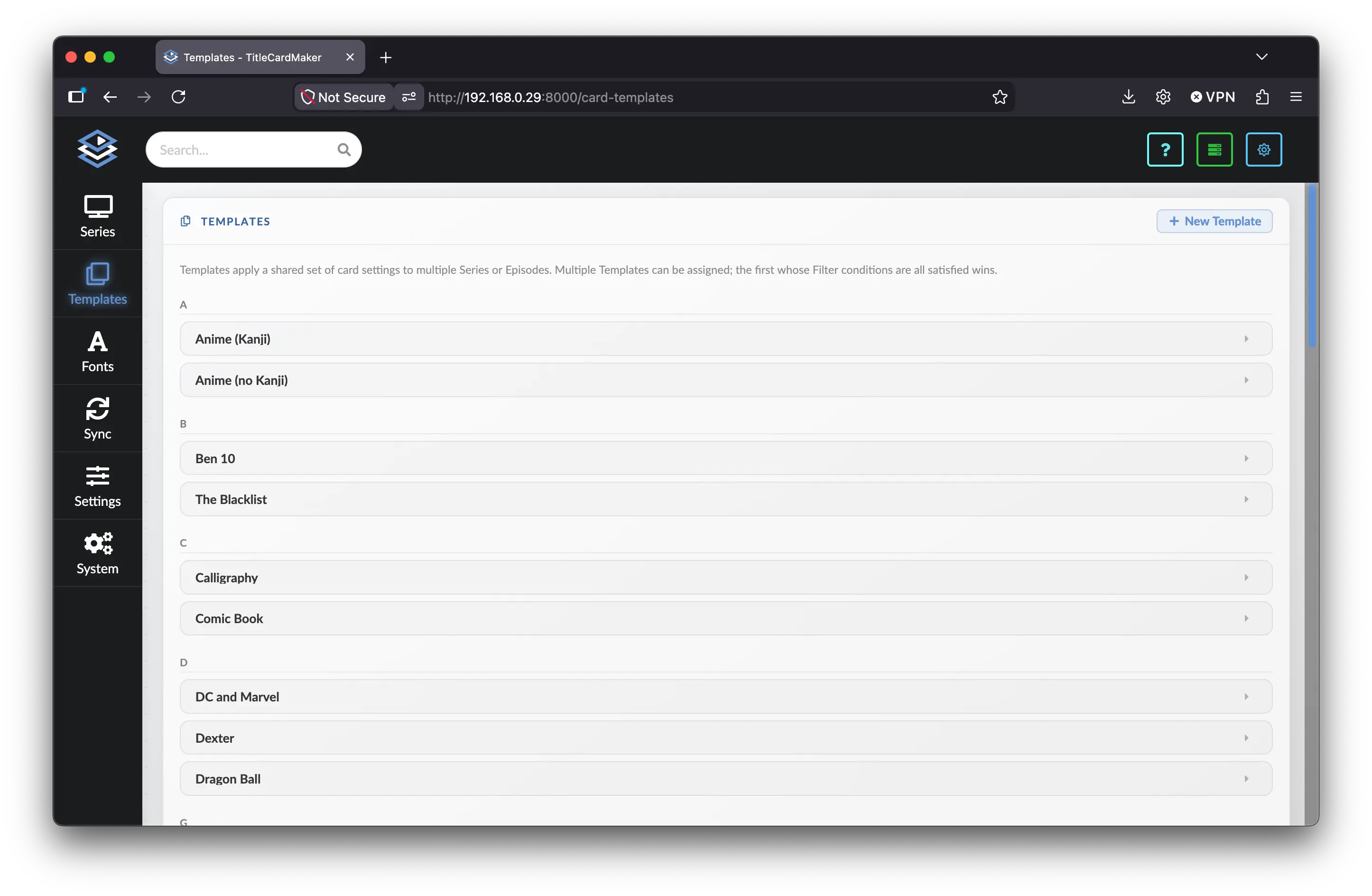
-
Create a new Template by clicking the button.
-
Expand the new Template by clicking the item called "Blank Template".
-
Rename the Template "Tinted Frame"
-
Under "Card Settings" change the card type to "Tinted Frame".
Don't see Tinted Frame?
If you added this card type to your global list of excluded card types then it will not appear. I recommend removing it and continuing with the tutorial.
-
Scroll down to "Extras" and select the "Tinted Frame" card type from the dropdown menu on the right. Notice there is an item for each card type within TCM.
-
Find the input labeled "Bottom Element" and select the
logoentry.What are Extras?
Extras are a way of overriding or customizing specific components of a Title Card. Extras are typically card type specific - and in this case the Tinted Frame card allows changing the bottom element from the season/episode text to a Logo image.
Below most extras is a tooltip which often describes the available options and default value for that extra. If you want more detail, or a specific example, refer to the card's documentation.
-
Hit
Save Changes.
Template Created
You have now successfully created a Template. When applied, this will set the card type to the Tinted Frame card, and use a logo in the bottom element.
We'll use this later in the tutorial.