Graphs
The Graphs page charts historical statistics about your TitleCardMaker
database and how long scheduled Tasks take to run. Access it from the System
sidebar via the Graphs item, or at the /graphs URL.
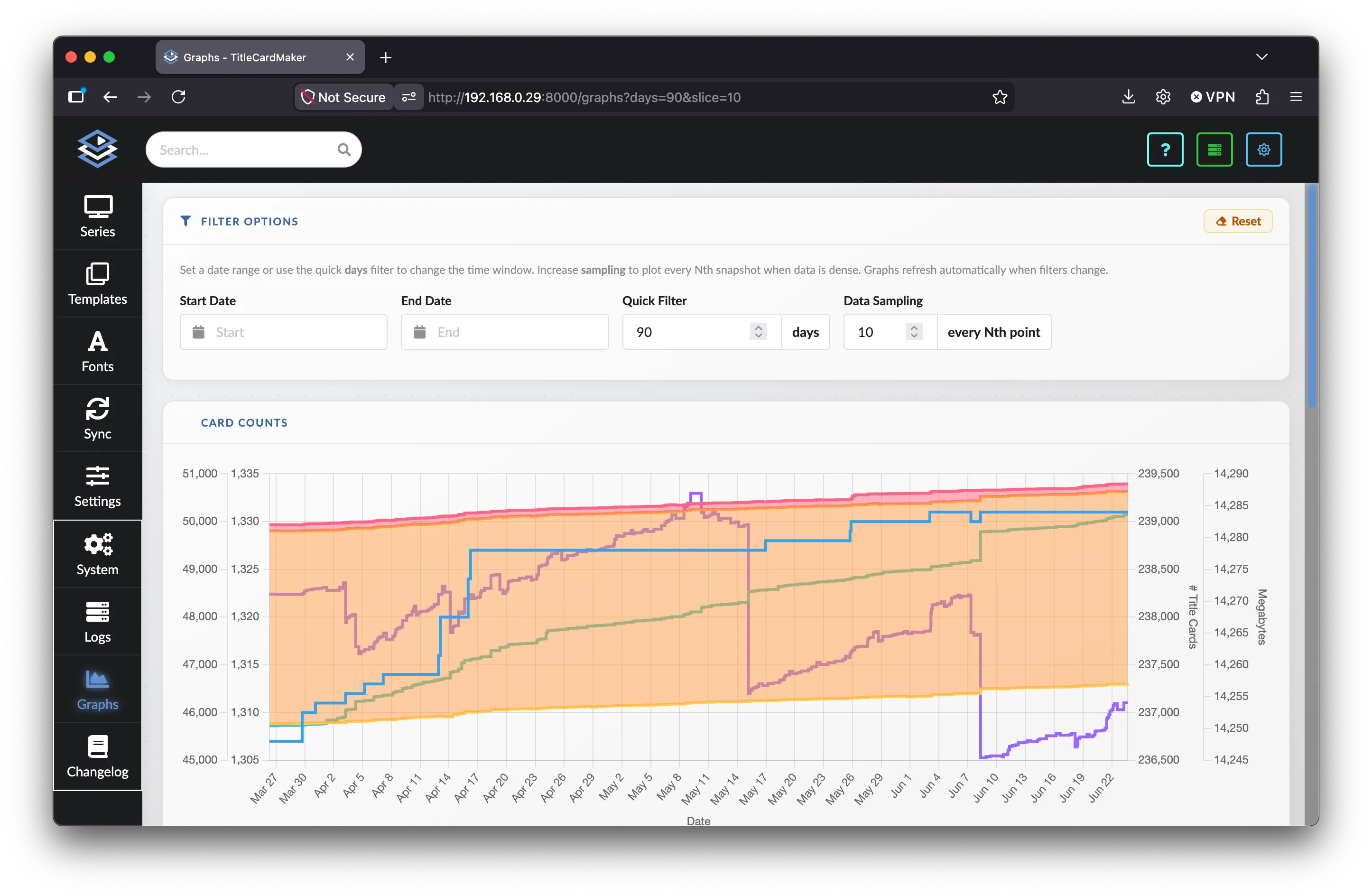
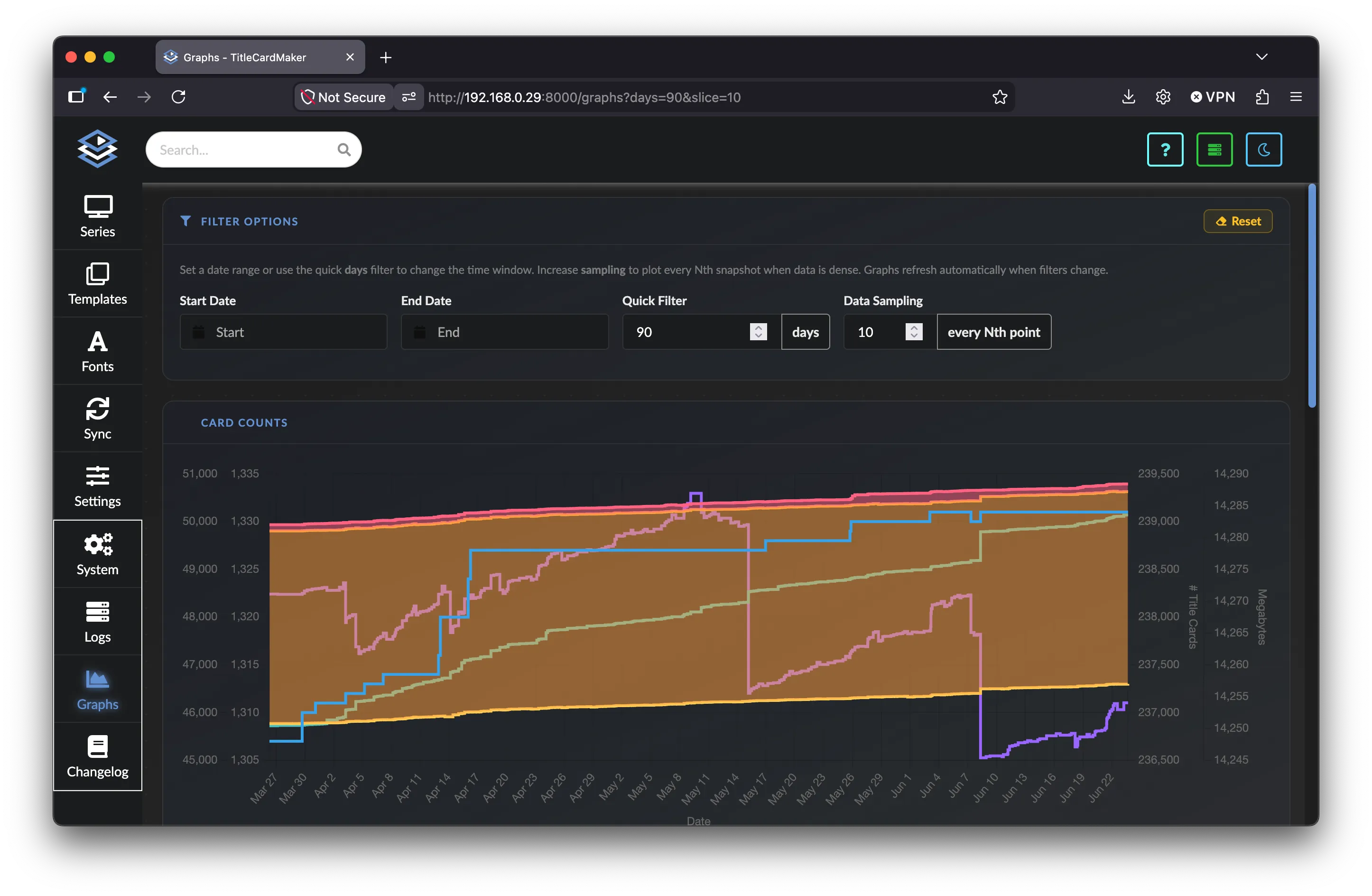
Graph data comes from periodic Database Snapshot records and Task duration history collected when scheduled Tasks complete. The graphs are informational — they do not affect TCM behavior.
Filter Options
All three graphs share the same time filters. Graphs refresh automatically whenever a filter value changes.
| Filter | Description |
|---|---|
| Start Date / End Date | Limit snapshots and task durations to a specific datetime range. Use the calendar pickers or enter values manually. |
| Quick Filter | Number of days to look back (default 14 when reset). Used only when Start Date and End Date are both empty. |
| Data Sampling | Plot every Nth snapshot (1 = all points, 2 = every other, up to 10). Useful when many snapshots make the line charts dense. |
Click Reset to clear the date range, restore 14 days, and set sampling back to 1.
Filter values are written to the page URL as query parameters, so you can bookmark or share a specific time window.
Date range priority
If Start Date or End Date is set, the Quick Filter days value is ignored for snapshot queries. Task durations always use Start Date when set; otherwise they fall back to the Quick Filter days value (or 7 days if neither is set).
Card Counts
This chart tracks Title Card-related metrics over time:
| Metric | Description |
|---|---|
| Series | Total Series in TCM. |
| Episodes | Total Episodes tracked. |
| Title Cards | Total Title Card records. |
| Loaded Title Cards | Title Cards that have been loaded to a media server. |
| Title Cards Created | Cumulative count of Title Cards ever created (based on the highest Card ID). |
| Title Card Filesize | Combined on-disk file size of all Title Cards, in megabytes. |
Hover over the chart to see values at a specific point in time. Toggle series on or off using the legend at the bottom.
Database Counts
This chart tracks counts of other database objects over time:
| Metric | Description |
|---|---|
| Blueprints | Imported Blueprint count. |
| Fonts | Named Fonts defined in TCM. |
| Syncs | Configured Sync rules. |
| Templates | Defined Templates. |
Use this chart alongside Card Counts to see how your library and configuration grow over time.
Task Durations
This chart shows when scheduled Tasks ran and how long each execution took.
Each Task appears as a horizontal band; hover a run to see its duration (for
example, Took 2 hours).
SnapshotDatabase runs are excluded from this chart because they are very frequent and would clutter the timeline.
Use this graph to understand how long your Tasks typically take and whether scheduled intervals leave enough idle time between runs. The Scheduler documentation recommends leaving at least 2–3× the idle time between longer-running Tasks compared to their typical duration.
Data Collection
Snapshots and task durations are recorded automatically:
- Database Snapshot — runs on a schedule (every few hours by default in Advanced mode) and stores counts of Series, Episodes, Cards, Fonts, Templates, Syncs, and related metrics at that moment.
- Task Durations — recorded each time a scheduled Task finishes.
If graphs appear empty, TCM may not have been running long enough to collect data yet, or your selected date range may not include any snapshots. Widen the time window or wait for the next Database Snapshot Task to run.