Series
When a Series is clicked on from the home page or the search bar,
you will access the Series page (at /series/{series_id}) where all
Series-level options, Title Card customizations, files, and actions can be
viewed and edited.
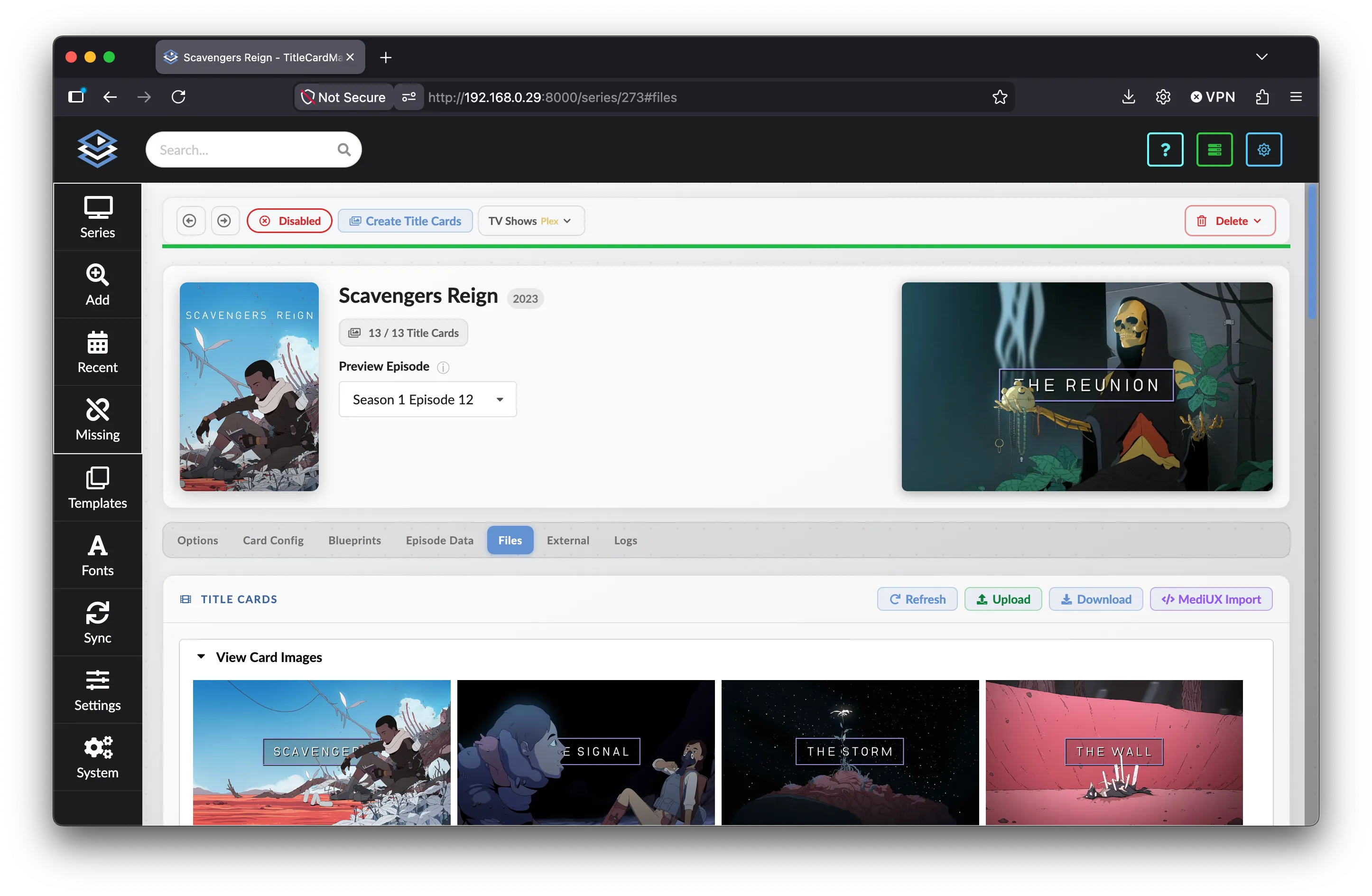
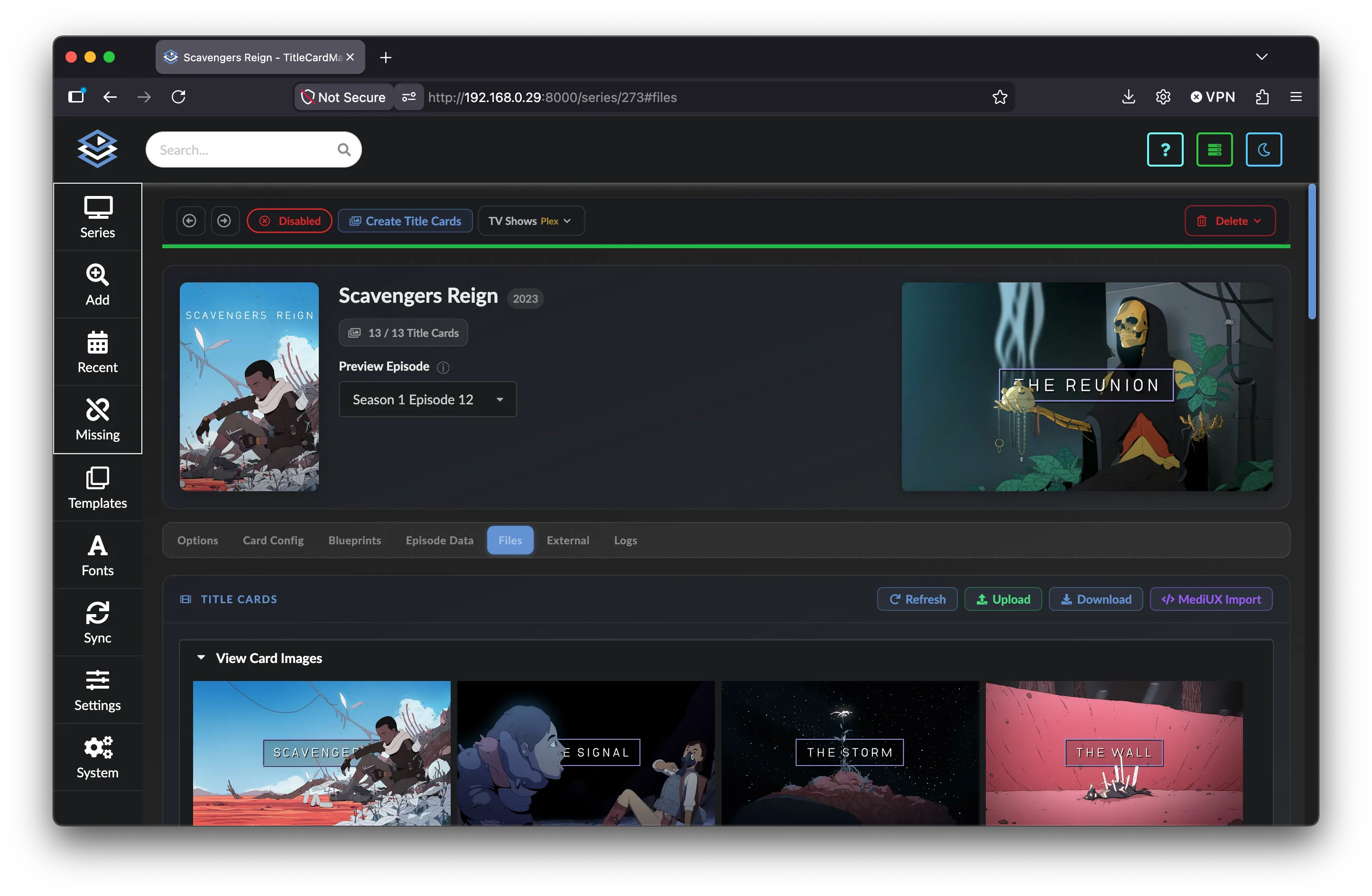
The page is organized into four main areas:
- Action bar — primary Series actions (status, card creation, libraries, delete)
- Hero panel — poster, editable name, card statistics, live preview
- Tab navigation — pill-style tabs for each configuration area
- Tab content — grouped into panels with inline help
Throughout the page, hover over ⓘ icons next to labels for short descriptions of individual settings.
Action Bar
The action bar sits at the top of the page and contains the primary actions you can perform on a Series.
Navigation Arrows
On the left are arrows ( and ). Clicking either navigates to the previous or next Series alphabetically from the current Series.
If you click an arrow and the page does not change and the arrow becomes greyed out, there is no next or previous Series to navigate to.
Monitored Status
Each Series can be monitored, unmonitored, or disabled. All Series start as monitored unless explicitly changed. Click the status button in the action bar to cycle through states:
- Monitored — green
- Unmonitored — yellow
- Disabled — red
Unmonitored Series do not do the following actions automatically (all actions can still be done manually):
- Refresh Episode data — i.e. check for new Episodes, look for modified Episode titles, etc.
- Add Episode translations
- Download missing Source Images
Disabled Series do not do anything automatically.
The Tasks in the scheduler that are responsible for the above actions will skip all unmonitored or disabled Series.
Create Title Cards
Scheduled Action
This action occurs automatically as part of the Create Title Cards Task.
prompts TCM to begin updating existing and creating new Title Cards. This action encompasses the following:
- Refreshes all Episode data1; then
- Queries any assigned Libraries for updated Episode watched statuses; then
- Looks for any missing Episode translations; then
- Downloads any missing Source Images2; and finally
- Begins Title Card creation
Background Execution
Because Title Card creation can take a long time, Card creation is executed in a background thread. This also means that if you start Card creation, make a change which would prompt new Cards, and then restart Card creation; TCM will create, delete, then re-create the Cards.
Library Actions
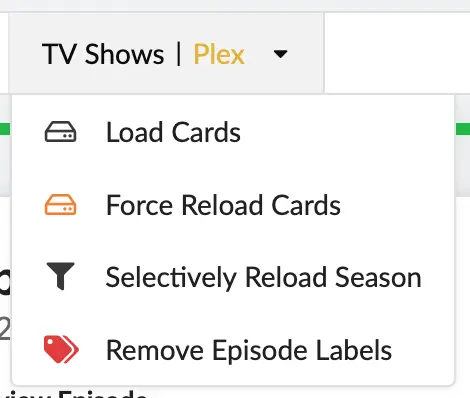
For every library which the currently selected Series is assigned to, a
dropdown menu appears showing the library and Connection name (e.g.
TV Shows | Plex). This dropdown contains several actions specific to that
library:
Title Card Loading
Scheduled Action
This action occurs automatically as part of the Load Title Cards Task. Title Cards are never automatically force-reloaded.
-
Load Cards — Loads only unloaded Title Cards into the associated Connection and library. This only affects Title Cards which were changed (and not re-loaded), or never loaded in the first place.
-
Force Reload Cards — Reloads all Title Cards into the associated Connection and library. This is much slower than normal Card loading, but can be used as needed — most commonly when the metadata of a Media Server is reset and previously loaded Title Cards are removed.
-
Selectively Reload Season — Opens a dialog allowing you to choose specific seasons to reload or force reload.
Remove Episode Labels
Plex Servers Only
This option only appears for libraries associated with Plex servers.
TitleCardMaker looks for specific labels on Episodes within Plex to determine whether it is able to download Source Images from that Episode. This is done to avoid grabbing a "Source Image" which is actually a previously loaded Title Card, or some image with a Kometa (PMM) overlay applied.
The Remove Episode Labels button removes the labels which TCM uses to track whether an Episode can provide a Source Image. This applies to all Episodes of this Series within Plex.
Delete Actions
On the right side of the action bar is a red Delete dropdown menu with three options:
- Source Images — Deletes all Source Images associated with this Series
- Title Cards — Deletes all Title Card files and removes them from the database
- Series — Deletes the Series itself
Irreversible Actions
All delete actions are permanent and cannot be undone. The Series deletion will also remove all associated Source Images if you have enabled the Delete Series Source Images option.
Progress Bar
Directly beneath the action bar is a thin progress bar showing the proportion of created vs. missing Title Cards for this Series (green and red segments).
This is updated periodically. You can also click the Title Cards statistic in the hero panel (see below) to force TCM to refresh that information.
Color Accessibility
If the default colors are hard to see, these can be changed to higher contrast options by toggling the global Color Impaired Mode setting.
More Cards than Episodes?
If the listed Card count is higher than the total number of Episodes, then most likely you have enabled Multi-Library Filename Support, and TCM has created a separate Card for each library of the Series.
Hero Panel
The hero panel combines the Series poster, name, statistics, preview controls, and live Title Card preview into a single summary area at the top of the page.
Connection Warnings
If TCM could not match this Series to one or more configured Connections (Emby, Jellyfin, Sonarr, TMDb, etc.), a yellow warning banner appears at the top of the hero panel listing the missing services. Click the External IDs link in that banner to jump directly to the External tab where those IDs can be reviewed or corrected.
TCM will attempt to automatically repopulate these IDs as it runs - see the Set Series IDs task in the Scheduler - but there may be instances where the automated matching is incorrect (or simply too slow).
Series Poster
When a Series is added to TitleCardMaker, TCM looks for a poster in your media servers (Plex, Emby, Jellyfin) — if a library has been assigned. If one cannot be found, it searches TMDb, or TVDb.
This poster is purely visual and is not used for Title Card creation.
Hover over the poster to reveal a Change overlay, then click to open the Change Poster modal. From there you can:
- Enter a URL and load it (or use the search icon to query TMDb for a poster URL)
- Upload a file from your machine
- Pull from Server to delete the current poster and re-download from a linked media server or TMDb
Series Name and Year
The Series name in the hero is editable — click into the title text to change it. The year badge beside the name is read-only.
Note
Changing the name here does not automatically save. Use the appropriate save action for the tab you are working in, or rely on other fields that trigger a save when submitted.
Title Card Statistics
The Title Cards badge (e.g. 12 / 24 Title Cards) shows how many Title
Cards exist versus how many are expected. Click it to refresh the count and
progress bar immediately.
Preview Episode
The Preview Episode dropdown selects which Episode is used when generating the live preview Title Card. Changing the selection triggers a preview refresh using the current Card Configuration settings.
If the dropdown includes a "load next page" entry at the bottom, selecting it loads more Episodes into the list rather than generating a preview.
Live Preview
The live preview thumbnail in the top-right of the hero shows a rendered Title Card for the selected preview Episode. It reflects changes made on the Card Config tab (and per-Episode overrides where applicable), except changes to assigned Templates (due to how Templates are resolved in the underlying database).
| Interaction | Action |
|---|---|
| Click the preview image | Opens a fullscreen lightbox showing the card at full size for detail inspection |
| (refresh) | Regenerates the preview from the current settings |
| (expand) | Opens the same fullscreen lightbox |
The refresh and expand buttons appear when hovering over the preview thumbnail. While the lightbox is open, refreshing the preview updates the enlarged image as well.
Save your changes
Changes on the Options and Card Config tabs are not permanent until saved. After editing either tab, a sticky save bar appears at the bottom of the page — click Save Options or Save Card Config to persist your changes. TCM will not warn you when navigating away with unsaved changes.
Tab Navigation
Configuration for a Series is split across seven tabs, shown as a horizontal pill-style menu below the hero:
| Tab | Purpose |
|---|---|
| Options | Data sources, behaviour, and file layout |
| Card Config | Templates, styling, translations, and extras |
| Blueprints | Import/export community card configurations |
| Episode Data | Per-Episode table editing |
| Files | Title Cards, Source Images, logos, and backdrops |
| External | Service IDs (TMDb, TVDb, Sonarr, etc.) |
| Logs | Series-specific activity history |
Saving Changes
Different areas of the page save independently:
| Area | How to save |
|---|---|
| Options tab | Sticky Save Options bar (appears after any change) |
| Card Config tab | Sticky Save Card Config bar (appears after any change) |
| External tab | Inline Save button at the bottom of the form |
| Episode Data tab | Per-row save icons, or Save All in the panel header |
Options Tab
The Options tab is divided into three panels.
Data Sources
-
Libraries — Which libraries this Series can be found in on your Media Servers. This setting is required for a Series' Title Cards to be loaded into the respective server. Any number of libraries can be added. If your effective Episode Data Source is a Media Server, only the first library associated with that Connection will be queried for Episode data.
-
Episode Data Source — Where to get Episode data from. If left unspecified, this falls back to assigned Template(s) or the global Episode Data Source value. If this is a Media Server, the Series must have at least one library associated with that Connection.
-
Image Source Priority — Order of Connections to try when downloading Source Images, backdrops, and logos.
Updating Libraries
When adding or removing libraries, the library action dropdowns in the action bar update after refreshing the page.
Changing Library Names
TitleCardMaker stores a lot of data under the specific library name as it appears in your Media Servers. Changing library names in your servers is strongly discouraged if it can be avoided.
Behaviour
Three toggle switches control common Series behaviour:
- Match Titles — Whether to update Episode titles if they differ from the assigned Episode data source
- Auto-Split Titles — Whether to automatically split the title text into separate lines
- Per-Season Assets — Whether to use manually added backdrops and logos unique to each season (enables per-season asset management on the Files tab)
Two dropdown fields control specials and localization (each can be left at Default to inherit from Templates or global settings):
- Enable Specials — Whether to include Episodes from Season 0 (specials)
- Ignore Localized Images — Whether to ignore images with assigned languages
File Layout
- Card Directory — Directory to store this Series' Title Cards
- Filename Format — Format for naming this Series' Title Cards
Card Config Tab
The Card Config tab contains all visual and styling options for Title Cards, organized into several panels.
Templates and Card Type
- Templates — Evaluated in order; the first Template whose filters match wins. Multiple Templates can be assigned — read more here.
- Card Type — The visual style/type of Title Card to create
- Font — The named Font to use for text on the Title Cards
Episode Style
Common Confusion
It is common for new users to select an Art style (intentionally or on purpose), forget, and then notice that many Title Cards are being created with the same generic background art.
Please read about the difference between Unique and Art styles on the Settings page.
- Watched Episode Style — How watched Episodes should appear (Art, Unique, with blur/grayscale effects, etc.)
- Unwatched Episode Style — How unwatched Episodes should appear
Font Overrides
- Color — Text color (supports ImageMagick color names; click the link icon to open the ImageMagick color reference page)
- Text Case — How to pre-process title text
- Size, Kerning, Stroke Width — Percentage values relative to the default Font
- Interline Spacing, Interword Spacing, Vertical Shift — Fine positioning controls
Leave any field blank to inherit from the Template or global default.
Season and Episode Text
- Hide Season Titles — Remove season text (e.g. "Season 1")
- Season Titles — Custom titles for specific season ranges. Use Add / Delete All to manage rows. Hover the ⓘ on the format note for syntax details.
- Hide Episode Text — Remove episode text (e.g. "Episode 1")
- Episode Text Format — Custom format string for episode text
Translations and Extras
Quick translation settings
At the top of the Translations panel, two simplified controls cover the most common translation needs:
- Title Language — Select a TMDb language to fetch Episode titles as the preferred title. Leave at Default (source title) to use the title from your Episode data source without translation.
- Enable Kanji — When enabled, TCM fetches Japanese titles from TMDb into
the
kanjifield (used by Anime-style card types). Equivalent to adding aja → kanjitranslation entry.
Additional Translations
Below the quick settings, Additional Translations supports custom translation rules beyond preferred title and kanji. Each row specifies a language and a target data key. Use Add to create a row and Delete All to remove all additional rows (this does not affect the Title Language or Kanji settings above).
Extras
The Extras section provides tabbed fields for card-type-specific custom values. The available extras depend on the selected Card Type on the right side of the section.
In-depth documentation of each extra (along with example images) can be found on the Card Types page.
Blueprints Tab
Blueprints are pre-made Card configurations which can be imported and applied to a Series. Read more here.
- Search — Query available Blueprints for this Series from GitHub
- Export — Export the current Series configuration as a Blueprint
Results appear as cards below the panel description. A badge on the Blueprints tab indicates how many Blueprints are available.
Episode Data Tab
The Episode Data tab provides a sortable table for managing individual Episodes and their Card settings. Data is loaded the first time you open this tab.
Header Actions
| Button | Action |
|---|---|
| Refresh | Refresh Episode data from the configured data source |
| Add Episode | Open a modal to add a new Episode manually |
| Save All | Save all pending row changes |
| Delete All | Delete all Episodes |
| Toggle Mode | Switch between simplified and advanced table columns (same as the global Simplified Episode Data Tables setting) |
Table Interactions
Each row represents one Episode. Depending on the current mode, columns may include season/episode numbers, title, style overrides, font settings, external IDs, and more.
Common per-row interactions:
- Create Card — Trigger Title Card creation for that Episode
- Save Changes — Save edits made to that row
- Boolean icons (grey question / green check / red cross) — Click to cycle a three-state override: not set (inherit from Series/Template), true, or false
- Extras & Translations — Opens a modal to edit per-Episode translations and extra fields
The table scrolls horizontally when there are many columns. Pagination controls appear below the table when there are more Episodes than fit on one page.
Files Tab
The Files tab is split into three panels. Title Card and Source Image data load the first time you open this tab.
Title Cards
- Refresh — Reload the Title Card file list and previews
- Upload — Open a dialog for manually uploading Title Card files
- MediUX Import — Import Title Cards from MediUX (or any Kometa-formatted YAML)
A collapsible View Title Cards accordion shows thumbnail previews of all created Cards. Click a thumbnail to open a popup with per-Card actions:
- Delete, download, recreate, reload, and selective reload
- Hovering a thumbnail shows season/episode information
Source Images
Source Images are the original images used to create Title Cards.
- Refresh — Reload the Source Image table
- Upload — Upload Source Images via a file picker
Source Image Naming
When uploading Source Images via the upload dialog, TCM does not perform any renaming or image validation on your behalf.
The table lists season, episode, dimensions, file size, and action columns:
| Column | Action |
|---|---|
| Browse | Browse alternative Source Images from TMDb or media servers |
| Upload | Replace the Source Image for that Episode |
| Mirror | Mirror/flip the Source Image |
| Download | Download the file |
| Delete | Delete the Source Image |
A collapsible View Source Images accordion shows thumbnail previews. A warning icon appears in the panel header if the Series is unmonitored (Source Images are not downloaded automatically for unmonitored Series).
Automatic Download
Source Images are downloaded automatically when Title Cards are created, but only for monitored Series.
Series Assets
Logo
Each logo card shows the current file (or a placeholder if none exists).
- Browse — Browse available logos from TMDb
- Upload — Upload a logo file
- Analyze Palette — Extract dominant colors from the logo
- Delete — Remove the current logo
If Per-Season Assets is enabled on the Options tab, a grid of per-season logo cards appears below the Series-wide logo.
Backdrop
Same layout and actions as logos. The backdrop is automatically used as the source image for any "Art" styles. Per-season backdrop cards appear when Per-Season Assets is enabled.
External Tab
Caution
Be wary of manually changing these fields yourself, as TCM does not perform any validation on the IDs you enter. Entering the wrong ID can result in TCM downloading assets from entirely different Series.
The External tab manages service IDs linking this Series to external databases and servers. These are usually set automatically when a Series is added — only edit them if something is incorrect.
Fields are grouped by service:
- Emby — Format:
{Interface ID}:{Library Name}:{ID} - Jellyfin — Format:
{Interface ID}:{Library Name}:{ID} - Sonarr — Format:
{Interface ID}:{ID} - Metadata Databases — IMDb, TMDb, TVDb (with external links when set)
- TVRage — Shown for series from before 2017, or when already set
- Other — Set URL (convenience link only)
Click Save at the bottom of the form to persist changes.
Logs Tab
The Logs tab shows a chronological Activity list for this Series. Log entries are loaded the first time you open the tab.
Each entry shows:
- A colored severity dot (Critical, Error, Warning, Info, Debug, Trace)
- The log message
- A relative timestamp
- An optional context ID (hovering an entry with a context ID dims unrelated entries to help trace a single operation)
For comprehensive server-wide logging, see the Logs page.
-
During this, TCM queries the effective Episode data source for any new Episodes and adds them to the Series; and updates the titles of all existing Episodes to match what is currently present in the Episode data source if title matching is enabled. ↩
-
During this, TCM will not replace any existing images, nor will it download any backdrops or logos. TCM will search for images in the order specified in your global image source priority. If the Series does not have any libraries assigned for a given media server Connection (e.g. a Plex Connection being in your source priority, but this Series having no Plex library) then it will be skipped. ↩