Server Logs
TitleCardMaker stores log messages in a logging database and also writes log
files to the config/logs directory on disk. The Logs page provides a way to
view, filter, and manage stored log messages within the UI.
Access the page from the System sidebar via the Logs item, from the green
server icon in the top-right header, or at the /logs URL.
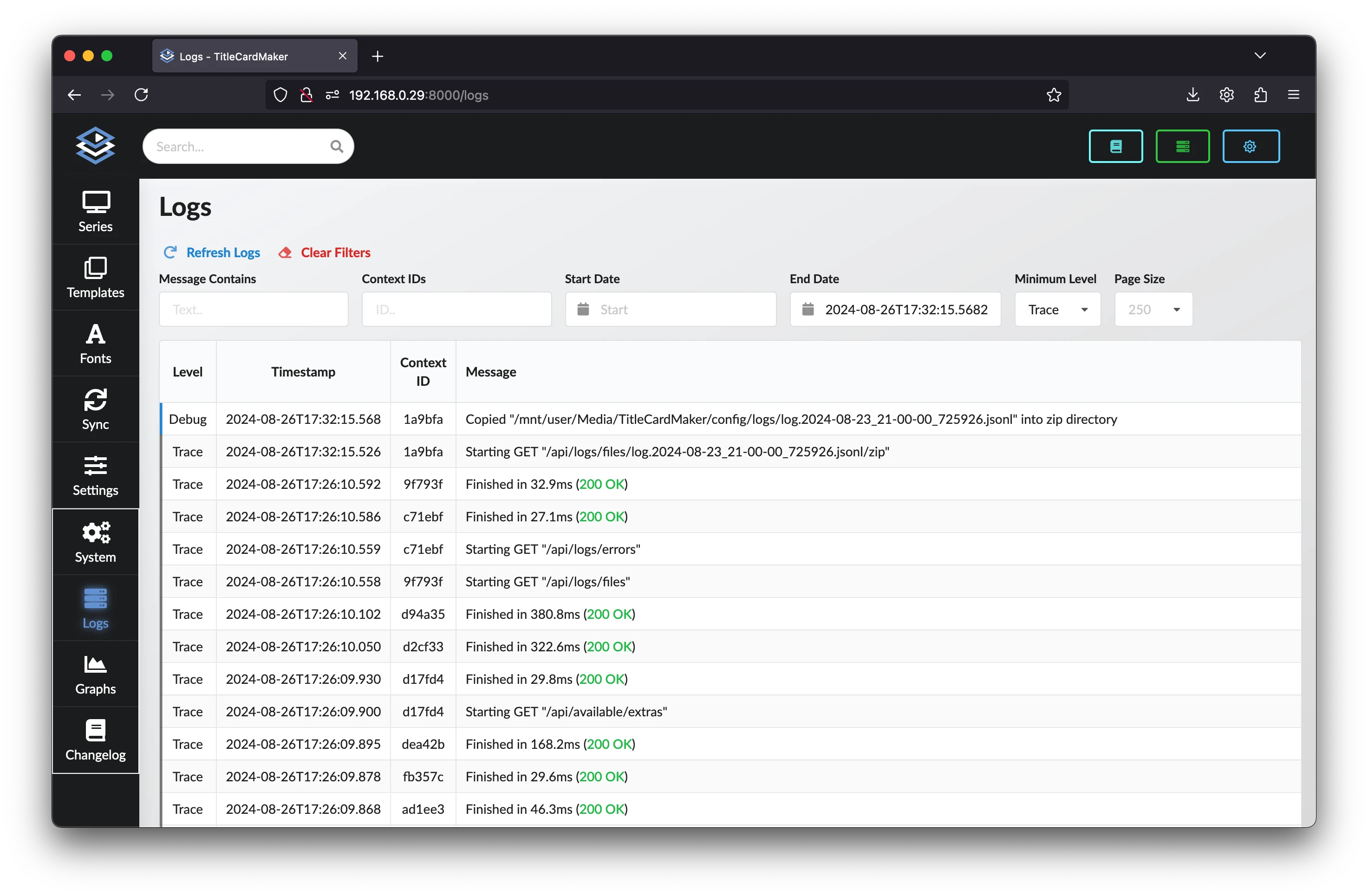
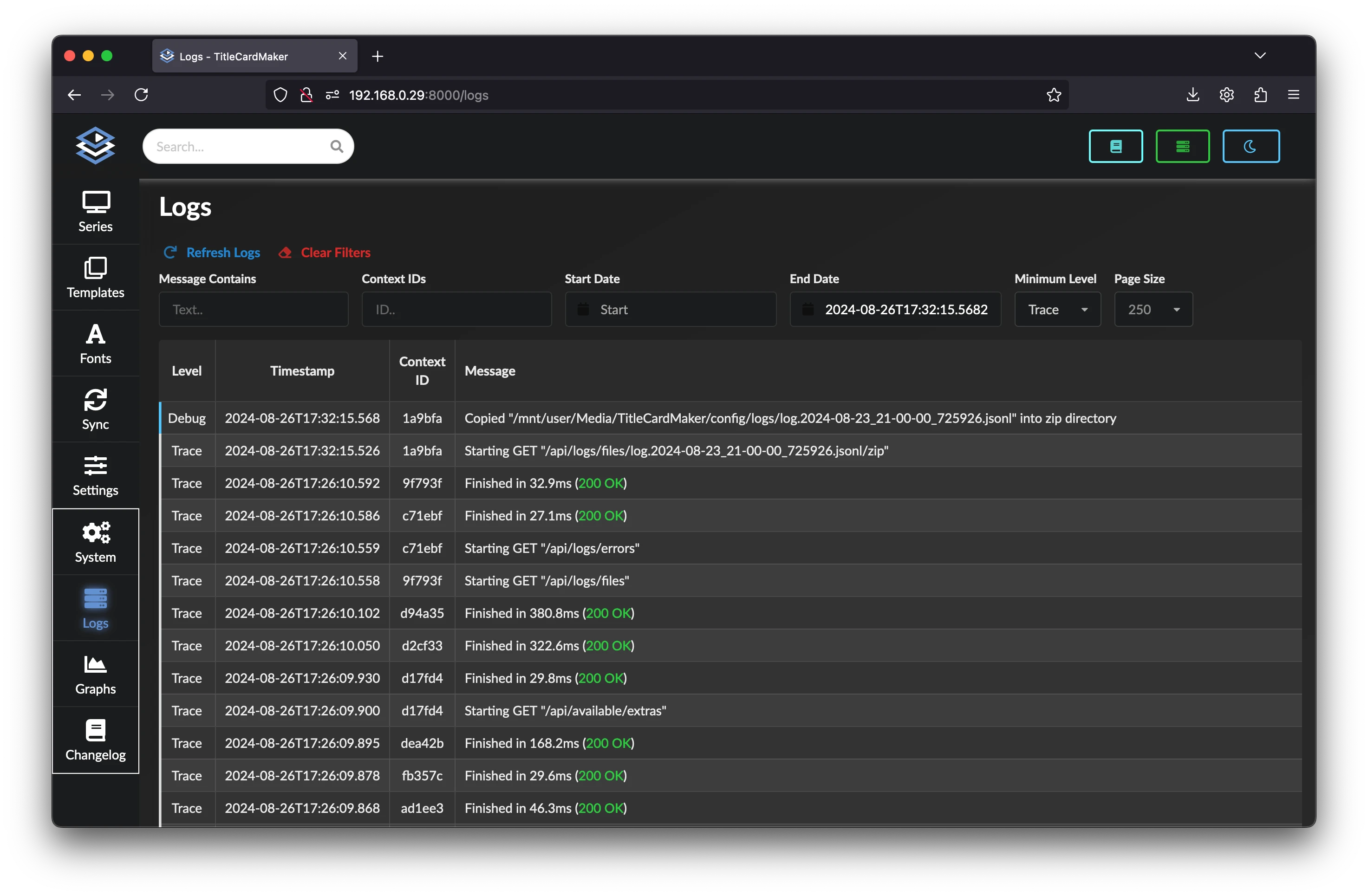
The page is split into three panels:
- System Logs — interactive, filterable log message table
- Prune Log Database — remove old log entries to free space
- Internal Server Errors — summary of unexpected errors for bug reports
Purpose of Logs
The purpose of this page is to provide a quick way to view and filter logs.
It is not a full replacement for raw log files on disk. When debugging
a problem, downloading the log database or reading files in config/logs
is often more complete.
System Logs
The System Logs panel shows a paginated table of log messages with columns for Level, Timestamp, Context ID, and Message. Color-coded level badges make it easy to spot warnings and errors.
Header actions:
| Button | Description |
|---|---|
| Refresh | Reload the table using the current filters. |
| Reset | Clear all filter fields and reload. |
| Download DB | Download the log database as log_db.zip. |
Filters
All filters are optional. After changing filters, click Refresh to update the table.
| Filter | Description |
|---|---|
| Message Contains | Show only messages containing this text (case-insensitive). Use pipe-separated values (\|) for OR logic — e.g. Breaking Bad\|Better Call Saul. Matching text is highlighted in yellow in the table. |
| Context IDs | Comma-separated list of context IDs to include. Include ! to filter messages that have a context ID (excluding messages with no ID). |
| Start Date / End Date | Limit messages to a datetime range. Use the calendar pickers or enter values manually in YYYY-MM-DDTHH:mm:ss format. |
| Minimum Level | Only show messages at or above the selected level: Trace, Debug, Info, Warning, Error, or Critical. |
| Page Size | Number of messages per page: 50, 100, 250, or 500 (default 100). |
Table Interaction
Click cells in the log table to apply filters quickly:
- Level — sets the Minimum Level filter.
- Timestamp — sets Start Date if empty, otherwise End Date.
- Context ID — appends the ID to the Context IDs filter.
Dynamic Links
TCM parses log messages to create navigation links where possible. Examples include:
Series[1]→ Series pageTemplate[n],Font[n],Sync[n]→ Templates, Fonts, or Sync pagesTask[...]→ Scheduler page- Connection references → Connections page
API completion lines like Finished in 8683.2ms (200 OK) are color-coded by
HTTP status. [REDACTED] values are styled distinctly. Messages with
tracebacks or formatted diagnostic output are shown in a monospace code style.
API Logs
When troubleshooting a specific operation, look for the start and end of an API request. TCM logs the start of requests with a message like:
and ends with a message like:
Finding the start message and then filtering by that operation's Context ID is a good starting point.
Prune Log Database
The Prune Log Database panel removes old entries from the logging database to free disk space.
- Run Clean Database Task — runs the scheduled Clear old logs task
immediately, deleting log entries older than the configured retention period
(see
TCM_LOG_RETENTION_DAYS). - Delete logs before — pick a date, then click Prune Logs to delete all log entries before that datetime.
Both actions refresh the log table afterward.
Internal Server Errors
The Internal Server Errors panel lists unexpected errors that may indicate a bug in TCM.
Each entry shows the context ID and how long ago the error occurred. Clicking the context ID or timestamp scrolls to the filter fields and applies that value as a filter.
Click the GitHub icon next to an error to:
- Download the log database as
log_db.zip - Open a new GitHub issue with the bug report template pre-filled
Attach the downloaded zip when filing the issue.
Log Files on Disk
TCM also writes rotating log files to config/logs on disk. Files cycle every
24 hours or at 24.9 MB (whichever comes first). Retention for on-disk files is
controlled by the TCM_LOG_RETENTION_DAYS
environment variable.
These files are not listed on the Logs page — use Download DB or browse
config/logs directly when you need the full raw output.